
Configure DNS for a custom domain
Before you begin
- Plan
- Included in Pro and Team. How plans and limits work
- Role
- Admin or higher.
- You need
- A domain added under Settings → Custom domains
- Access to the domain's DNS records at your DNS provider
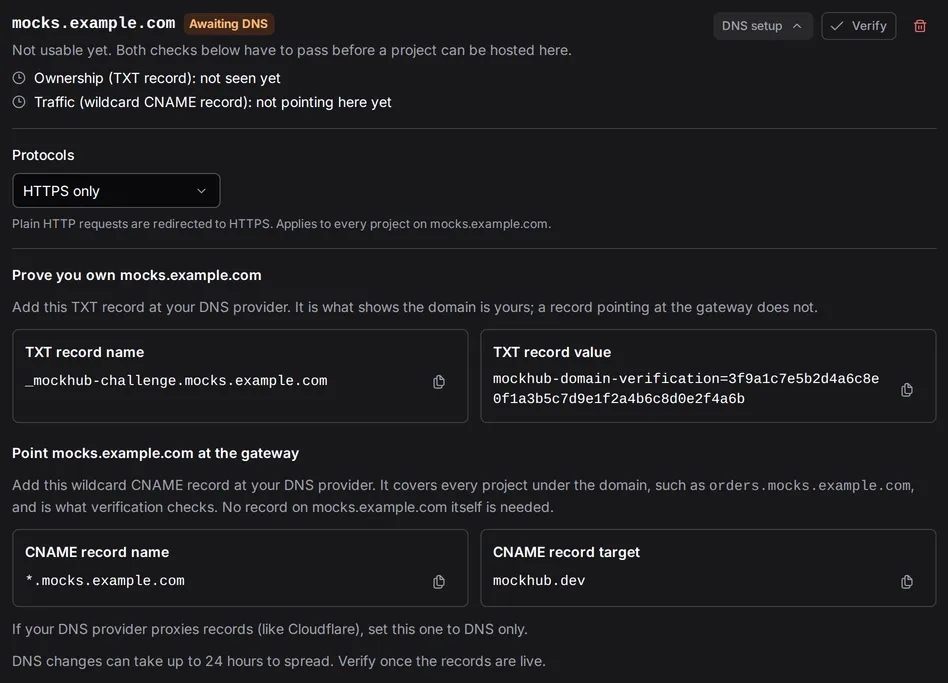
A custom domain needs two DNS records before any project can use it: a TXT record that proves the domain is yours, and a wildcard CNAME record that sends its projects’ traffic to MockHub. This page publishes both for mocks.example.com; use your own domain wherever it appears.
The records
Section titled “The records”| Purpose | Type | Name | Value |
|---|---|---|---|
| Ownership | TXT | _mockhub-challenge.mocks.example.com |
mockhub-domain-verification= followed by the value your domain shows |
| Traffic | CNAME | *.mocks.example.com |
mockhub.dev |
The TXT value is different for every domain, and is created when the domain is added. Copy both records from the app rather than from this table: each value there has its own copy button.
-
Open Settings → Custom domains.
-
Select DNS setup on the domain’s row. A domain you have just added shows it already.
-
Under Prove you own mocks.example.com, copy the TXT record name and the TXT record value.
-
At your DNS provider, create a TXT record with that name and value.
-
Under Point mocks.example.com at the gateway, copy the CNAME record name, which is the domain with
*.in front, and the CNAME record target. -
At your DNS provider, create a CNAME record with that name and target.
-
If your provider can proxy the record, as Cloudflare does, set it to DNS only.
-
Check that both records are live. From a terminal:
Terminal window dig +short TXT _mockhub-challenge.mocks.example.comdig +short CNAME any-name.mocks.example.comThe first command prints the TXT value, the second
mockhub.dev. -
Back on the domain’s row, select Verify.
Entering the names at your provider
Section titled “Entering the names at your provider”Many DNS providers take a name relative to the zone they manage. For a zone example.com, enter _mockhub-challenge.mocks and *.mocks; the provider adds .example.com. When the domain is the zone itself, such as example.com, enter _mockhub-challenge and *. A wildcard CNAME is allowed at the root of a zone, and no record on the domain’s own name is needed.
Some providers put quotes around a TXT value. MockHub ignores them.
If your provider flattens CNAME records into A records, verification still passes: MockHub accepts an answer that carries the gateway’s addresses.
Result
Section titled “Result”After Verify, the domain is tagged Verified and its row reads “Ownership (TXT record): proven” and “Traffic (wildcard CNAME record): reaches the gateway”. Keep the CNAME record in place: it is what carries every request.
Keep the TXT record in place too: MockHub checks it again every day, and a domain whose record stays missing for seven days stops serving its projects. The CNAME record is checked again only when you select Verify.
Limits
Section titled “Limits”- MockHub checks traffic by looking up a new random name under the domain each time, never the domain itself, so a record for one name, such as
orders.mocks.example.com, does not verify it. The wildcard is what counts. Because the name is new every time, a failed lookup is never cached against the next attempt. - A record for a specific name under the domain overrides the wildcard for that name. A project whose name has such a record verifies but never receives traffic; see Hostnames, domains and protocols.
- A proxied record answers with the proxy’s addresses, so MockHub cannot see the gateway behind it and the traffic check fails.
- DNS changes can take up to 24 hours to spread. Verify once
digshows the records. - The app gives a CNAME target and no address for an A record. Point the wildcard at the target it shows.