
Your first mock in five minutes
Before you begin
- You need
- An email address
- A terminal with curl, or another HTTP client
By the end of this page you have an address that answers GET /v1/orders with JSON you wrote, and you have seen that call in the project’s request log.
Create an account
Section titled “Create an account”-
Open mockhub.io/register. The page says Create your account.
-
Enter your Email and a Password of at least 8 characters.
-
Select Create account.
A message says Account created and that a verification link is on its way. You land on Projects, which says No projects yet. Nothing on this page needs the address verified, so you can open the link later.
Create a project
Section titled “Create a project”-
Select Create your first project. The New project form opens.
-
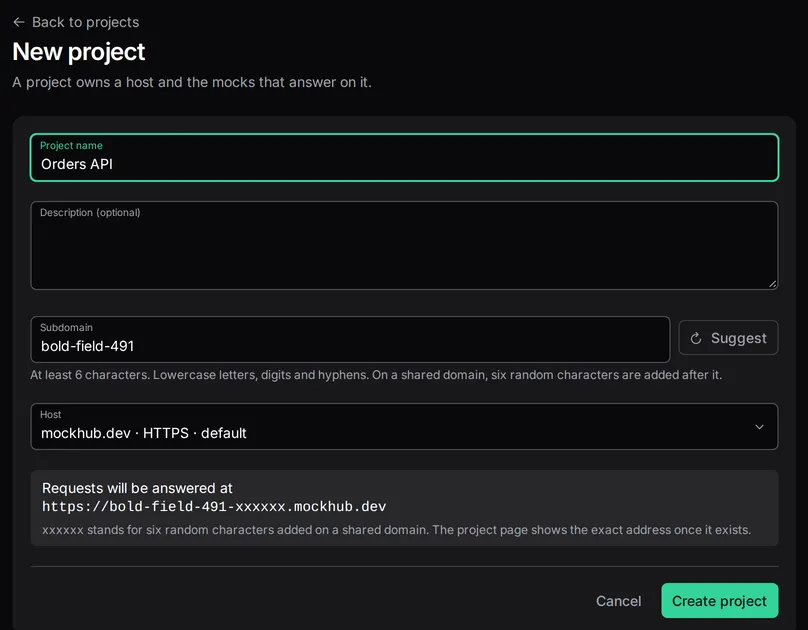
Enter a Project name, such as
Orders API. -
Leave Subdomain and Host as they are. The subdomain is a random suggestion, such as
bold-field-491, and the form shows the address it makes under Requests will be answered at.On the shared domain, MockHub adds six random characters to the subdomain when it creates the project. The form shows them as
xxxxxx, such ashttps://bold-field-491-xxxxxx.mockhub.dev. -
Select Create project.
A message says Project created, and the project opens on its Mocks tab, which says No mocks yet. The project’s address is shown under its name.
This page writes that address as https://orders-api.mockhub.dev. Use your project’s own address wherever you see it.
Create a mock
Section titled “Create a mock”-
Select Create the first mock. The editor opens as New mock.
-
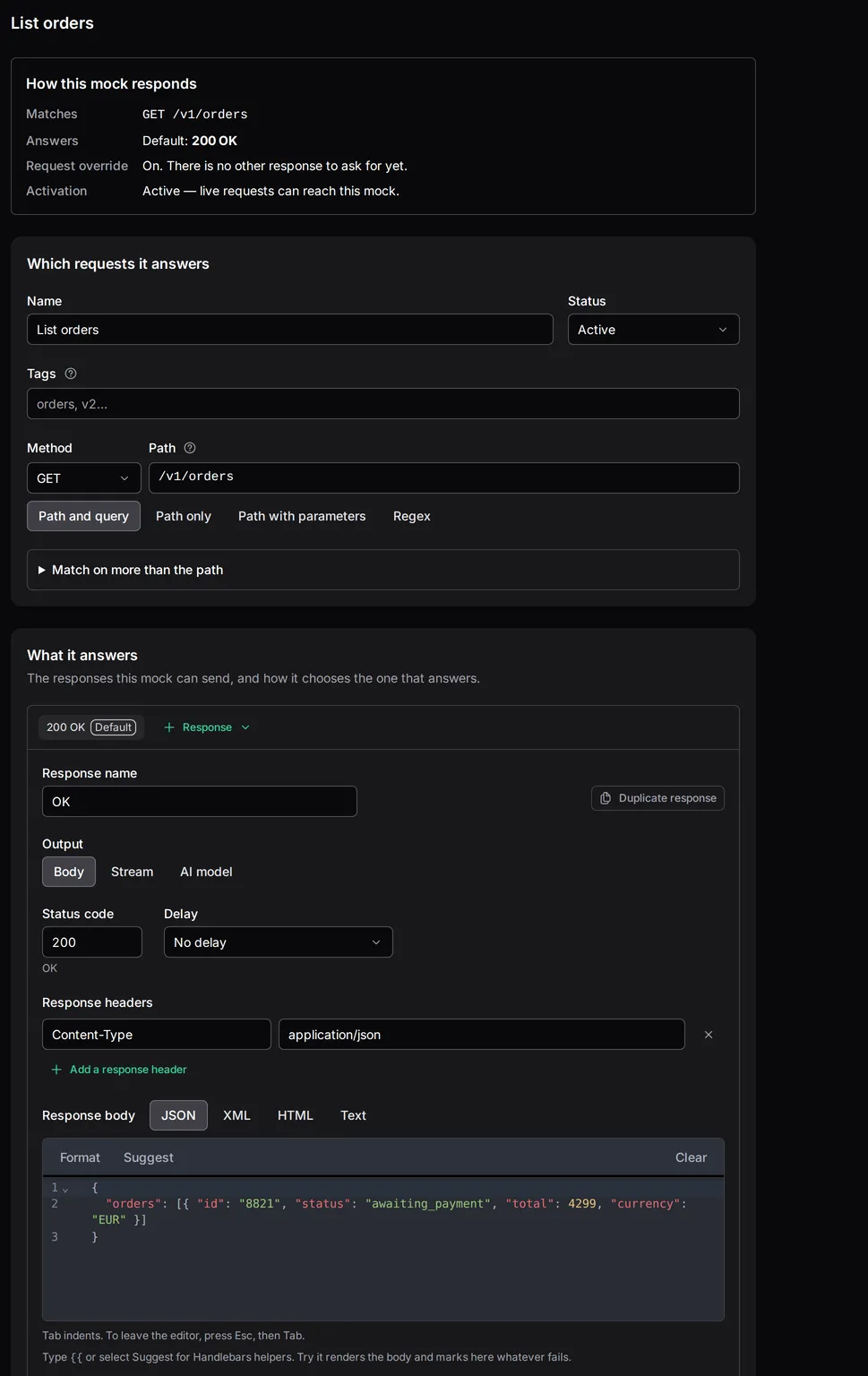
Enter a Name, such as
List orders. -
Keep the method at GET and the path at Path and query, and replace the path
/with/v1/orders. -
Under What it answers, keep Status code at
200and the response headerContent-Type: application/json. -
Replace the
{}under Response body with:{"orders": [{ "id": "8821", "status": "awaiting_payment", "total": 4299, "currency": "EUR" }]} -
Select Save mock.
A message says Mock created, and the Mocks tab lists the mock:
GET,/v1/orders, List orders, Active and200.
Call it
Section titled “Call it”Send the request from a terminal:
curl https://orders-api.mockhub.dev/v1/ordersThe answer is the body you saved:
{ "orders": [{ "id": "8821", "status": "awaiting_payment", "total": 4299, "currency": "EUR" }]}While none of a new project’s mocks has been called, the Mocks tab opens with Call your mock, which shows the mock’s method and full address. For a plain GET, Open live URL opens that address in a new tab and Copy curl copies the command above. For a request that needs another method, headers, a body, form fields or an access key, Copy curl is the only live call. Both reach the project’s address, so the call is in the request log.
Preview in sandbox shows what the mock answers, on the page, without sending a real request, so nothing appears in Request logs and no step is ticked. In a private project it also does not check the access key or the allow-list. A mock that matches multipart parts has no preview, because the sandbox cannot send them; run the curl instead.
Its numbered checklist ticks each step as you do it, in this order: Open the live URL or run the curl to call it, See the call in Request logs, and Change what it answers. Once the mock has been called, the second step reads See a call to this mock in Request logs and links to it with View matching request, which opens that request in the mock’s own request log. Teammates call the same project, so the request it finds may be theirs. While no call to the mock can be found, the step links to the mock’s request log and offers Refresh. When the request it found has expired or been deleted, the request log says so, and Call your mock then links to another call to the mock that is still kept. The step ticks once the request log has shown you a call to the mock. The card stays until you select Dismiss. Your browser remembers that, for you and that project only.
Two project settings change the card:
- In Record everything gateway mode, every request goes to the project’s upstream and no mock answers it, so the card offers no live call and no checklist. It names the upstream and links to Captures, where you can stop recording, and keeps Preview in sandbox.
- With Store request logs off, a call leaves no request log entry to open. The card says so before you call, leaves out the request log step, and offers Refresh to tick the call step once the mock has answered: check the answer your browser or curl shows.
A request no mock matches, such as GET /v1/order, gets a 404 whose body says No active mock in this project matches GET /v1/order., and Request logs lists it with No mock matched under Answered by. See My request returns 404.
Find the call in the request log
Section titled “Find the call in the request log”-
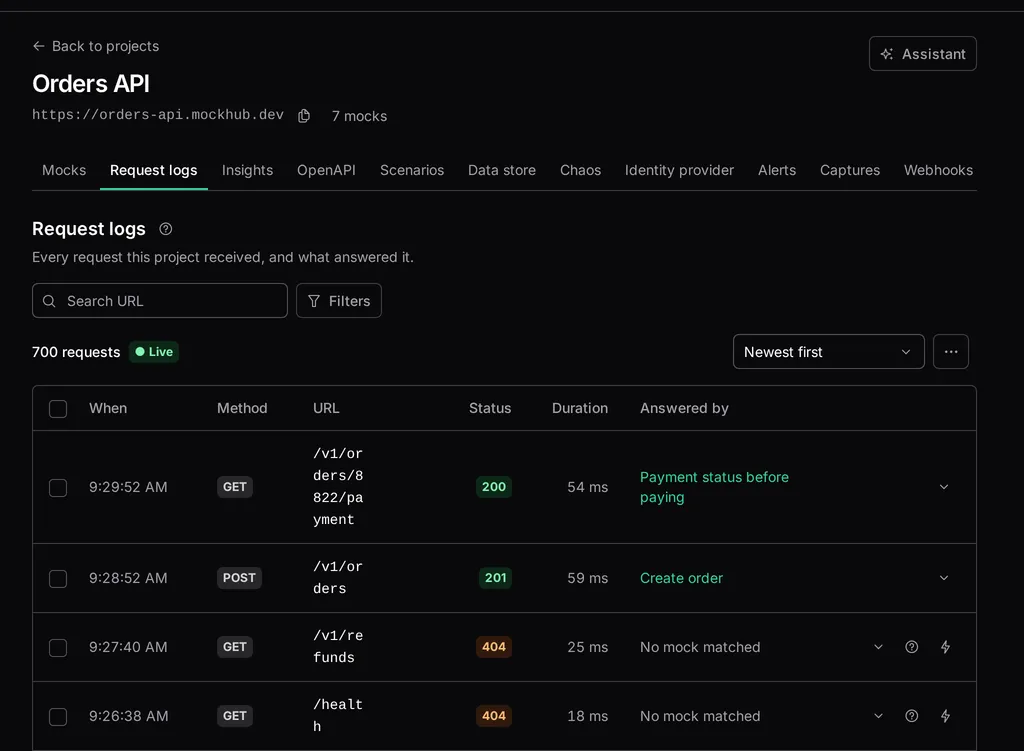
Open Request logs in the project.
Your call is the newest row: when it arrived,
GET, the URL, status200, how long it took, and Answered by List orders. While the Live tag shows, new calls appear on their own; otherwise select Refresh. -
Select Request and response on the row.
Request and Response show the headers and bodies, and a line such as
Answered in 12 mssays how long the answer took.
Result
Section titled “Result”The project answers at its own address, its mock answers GET /v1/orders, and every call it answers is recorded. Anything that speaks HTTP gets the same answer, so you can point your app’s base URL at the project’s address and build against it.
Limits
Section titled “Limits”- A request no mock matched is logged only while the project setting Log requests no mock answered is on, which it is for a new project. See Find requests no mock matched.
- Every call counts against the workspace’s request allowance, and request logs are kept for as long as its plan provides. See Plans, quotas and limits.
- Changing the project’s subdomain later changes its address, and clients still calling the old one stop reaching it.
- Make a mock realistic: fake data, a response sequence and a scenario.
- Create and edit a mock
- Read request logs